# - compatibility with Python 3
from __future__ import print_function  # print('me') instead of print 'me'
from __future__ import division  # 1/2 == 0.5, not 0
Getting code for the exercises with git
Change to your home directory:
cdChange to the pna_code directory:
cd pna_codeCheck that all is calm and well in this, your git repository:
git statusIf you see any changes with git status, investigate with git diff
If you like the changes, add them, and commit them:
git add my_file_with_changes.py
git commit
Now your own text editor should open up for you to type a message.
Get all the information about the class repository. First confirm you have a git remote for the class repository:
git remote -vNext fetch all the information from this (and any other) remote:
git fetch --allFinally, create and checkout the branch for today's class:
git branch for-class-day9 class-repo/for-class-day9
git checkout for-class-day9
You should see a file in the working directory called rotations.py.
Putting stuff on the Python path
Remember the Python path?
import sys
print('\n'.join(sys.path))
We are going to be using the modules in pna_code again this week.
It is getting a little tiring to keep doing:
import sys
sys.path.append('/Users/mb312/pna_code')
Is there any easier way?
Why yes - there is. In fact there are several.
The one we are going to use is the PYTHONPATH environment variable (see https://docs.python.org/2/using/cmdline.html#envvar-PYTHONPATH).
If you are on a Mac
- Open
Terminal.app; - Open the file
~/.bash_profilein your text editor; Add the following line to the end:
export PYTHONPATH=$HOME/pna_codeSave the file.
- Close
Terminal.app; Start
Terminal.appagain, and type this:echo $PYTHONPATHIt should show something like
/Users/your_username/pna_code. If not, come get one of us.
If you are on Linux
- Open your favorite terminal program;
- Open the file
~/.bashrcin your text editor; Add the following line to the end:
export PYTHONPATH=$HOME/pna_codeSave the file.
- Close your terminal application;
Start your terminal application again, and type this:
echo $PYTHONPATHIt should show something like
/home/your_username/pna_code. If not, come get one of us.
If you are on Windows
Got to the Windows menu, right-click on "Computer" and select "Properties":

From the computer properties dialog, select "Advanced system settings" on the left:

From the advanced system settings dialog, choose the "Environment variables" button:

In the Environment variables dialog, click the "New" button in the top half of the dialog, to make a new user variable:

Give the variable name as PYTHONPATH and the value is the path to the pna_code directory. Choose OK and OK again to save this variable.
Now open a cmd Window (Windows key, then type cmd and press Return). Type:
echo %PYTHONPATH%to confirm the environment variable is correctly set:
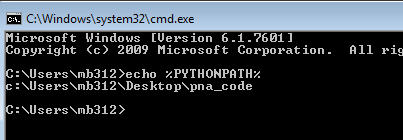
If you want the IPython notebook to see this new PYTHONPATH variable, you may need to close your terminal, open it again, and restart ipython notebook, so that it picks up PYTHONPATH from the environment settings.
You can check the current setting of environment variables, using the os.environ dictionary:
import os
os.environ['PYTHONPATH']